
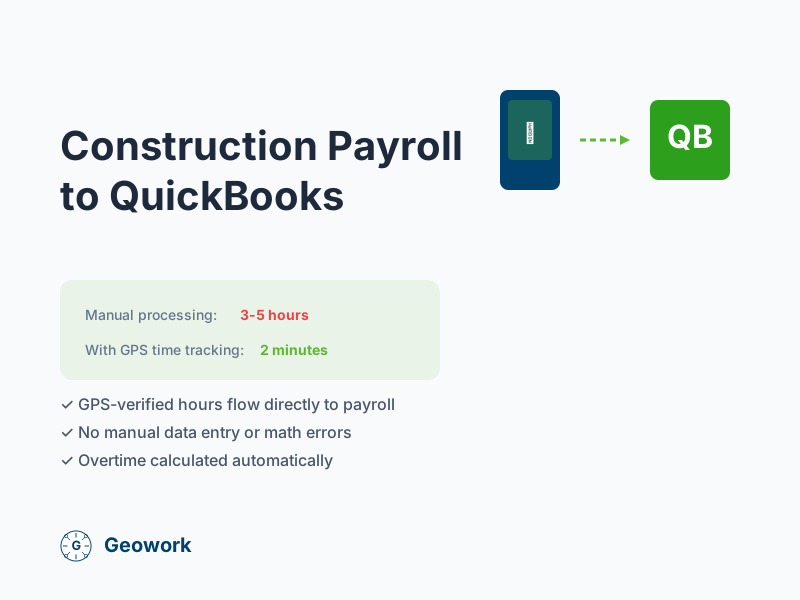
Processing construction payroll manually takes hours. You’re collecting paper timesheets, deciphering handwriting, fixing errors, and typing everything into QuickBooks. There’s a better way.
Integrating your time tracking with QuickBooks automates this entire process. Here’s how it works.
The Manual Payroll Problem
Most construction companies still process payroll like this:
- Collect paper timesheets from every worker
- Review each one for errors or missing info
- Chase down workers with questions
- Type hours into QuickBooks manually
- Double-check for data entry errors
- Run payroll
For a 20-person crew, this can take an estimated 3-5 hours per pay period. That’s potentially 6-10 hours per month on data entry (your actual time will vary based on your current process).
What Goes Wrong
Manual payroll is error-prone:
- Illegible handwriting: What does that say—7 or 9 hours?
- Math errors: Workers add wrong, you pay wrong
- Missing timesheets: Someone always forgets
- Data entry mistakes: Typing errors cost money
A single payroll error can cost more in corrections than a month of time tracking software.
How Payroll Integration Works
With integrated time tracking, the process looks like this:
- Workers clock in/out on their phones (GPS-verified)
- Time data syncs automatically to the cloud
- Review and approve entries in the dashboard
- Click “Export to QuickBooks”
- Run payroll
Total time: Estimated 15-30 minutes, a significant reduction from manual processing. Actual time depends on your specific app and QuickBooks version (Online vs. Desktop workflows differ).
What Gets Exported
When you export to QuickBooks, the integration sends:
- Employee name: Matched to your QuickBooks employee list
- Regular hours: Total hours under 40 (or your threshold)
- Overtime hours: Hours over 40, separated for OT pay
- Job/Class: Which project or cost center to bill
- Pay period dates: Start and end of the period
Everything is formatted exactly how QuickBooks expects it.
Setting Up the Integration
Step 1: Connect Your Accounts
Most time tracking apps have a “Connect to QuickBooks” button. Click it, sign into QuickBooks, and authorize the connection.
This is a one-time setup that takes about 5 minutes.
Step 2: Map Your Employees
Your time tracking app needs to know which employee is which in QuickBooks.
The app shows a list of your workers. For each one, select the matching QuickBooks employee. Once mapped, you won’t have to do this again.
Step 3: Map Job Sites to Classes (Optional)
If you track time by project or cost code in QuickBooks, map your job sites:
- Job Site A → Customer: Johnson Project
- Job Site B → Class: Commercial Division
This lets you see labor costs by project in QuickBooks.
Step 4: Set Your Pay Period
Configure your pay period schedule:
- Weekly (Sunday-Saturday)
- Bi-weekly
- Semi-monthly
The integration will group time entries by pay period.
The Export Process
Here’s what happens when you export:
1. Review Time Entries
Before exporting, review the period’s time entries:
- Check for any flagged entries (off-site clock-ins, missing clock-outs)
- Make corrections if needed
- Approve entries
2. Click Export
Hit the export button. The integration:
- Compiles all approved entries
- Calculates regular and overtime hours
- Formats data for QuickBooks
- Sends it to QuickBooks
3. Verify in QuickBooks
Check QuickBooks to confirm the data arrived:
- Review the timesheets
- Spot-check a few employees
- Run payroll as normal
The whole process takes minutes, not hours.
Handling Edge Cases
Workers Without QuickBooks Records
New workers need to be added to QuickBooks first. Most integrations won’t create new employees automatically—you need to add them and then map them.
Overtime Rules
The integration calculates overtime based on your rules:
- Standard: Over 40 hours/week = OT
- California: Over 8 hours/day = OT
- Custom: Set your own thresholds
Make sure your overtime settings match your state’s laws.
Job Costing
For job costing to work:
- Set up customers or classes in QuickBooks for each project
- Map job sites in your time tracking app to the right QuickBooks categories
- When workers clock in at a site, time is automatically coded to that project
Mid-Period Corrections
If you need to fix a time entry after export:
- Make the correction in your time tracking app
- Re-export (most integrations handle duplicates)
- Or manually adjust in QuickBooks
Benefits of Integration
Time Savings
| Task | Manual | Integrated |
|---|---|---|
| Collect timesheets | 30-60 min | 0 min |
| Review/correct | 30-60 min | 10-15 min |
| Data entry | 60-120 min | 2 min |
| Error checking | 30 min | 5 min |
| Total | 3-5 hours | 15-30 min |
Accuracy
No more:
- Typing errors
- Math mistakes
- Lost timesheets
- Illegible writing
Audit Trail
Every time entry has:
- GPS verification
- Timestamp
- Who approved it
- Export history
This documentation is valuable for audits and disputes.
Integrations Beyond QuickBooks
While QuickBooks is most common, good time tracking apps also integrate with:
- QuickBooks Desktop: File-based export
- Gusto: Direct API integration
- ADP: Formatted export files
- Paychex: CSV or direct integration
- CSV export: Works with any system
If your payroll system isn’t directly supported, CSV export fills the gap.
Getting Started
Ready to automate your construction payroll?
- Choose time tracking software with QuickBooks integration
- Connect accounts (5-minute setup)
- Map employees to QuickBooks records
- Run a test export with one pay period
- Go live once you’re confident in the data
The Bottom Line
Manual payroll processing wastes hours and introduces errors. Integration with QuickBooks automates the busywork so you can run payroll in minutes.
For a 20-person crew, you’ll save 3-4 hours every pay period. That’s 75-100 hours per year—time you can spend running your business.
Ready to Automate Your Payroll?
- Request a demo — See QuickBooks integration in action
- Learn more — GPS time tracking for construction
- View pricing — Flat-rate options for growing teams
Ready to See It in Action?
Join contractors who've already made the switch to GPS-verified time tracking.
Sources & verification
- QuickBooks Time Official vendor
- Construction time tracking software for trade contractors Official vendor
Comments (0)
Be the first to leave a comment!
Leave a Comment